apt-get update && apt-get upgrade -y
apt-get dist-upgrade -y
do-release-upgrade
quarta-feira, 13 de março de 2019

sexta-feira, 8 de março de 2019
HOW TO INSTALL Deutsche Telekom AG Honeypot Project
How to install Tpot t-Mobile
Requirements:
Ubuntu 18 lts
Git hub installed
Step 1:
Cd /tpot
Chmod 777 install.sh
./install.sh —type=user
Step 2:
Define user and password about the access the unit:
User: <USER>
Pass: <PASS>
Step 3:
Allow the access by the ports:
Ssh in server: 64295
Web access: https://<your.ip>:64297
Obs, i`m recommend open all the ports
source: http://dtag-dev-sec.github.io/mediator/feature/2017/11/07/t-pot-17.10.html
for debian 9, I, recommend install before this tool:
apt install npm
apt install pip
apt install toilet
terça-feira, 12 de fevereiro de 2019
HOW TO CREATE A SCRIPT FOR CONNECT SSH AUTOMATICALY
First:
apt-get install sshpass
touch ssh_server.sh
vi ssh_server.sh
if is default port:
sshpass -p "YOURPASS" ssh -o StrictHostKeyChecking=no <YOUR_USER>@<YOUR_IP>
if is necessary set especif port:
sshpass -p "YOURPASS" ssh -o StrictHostKeyChecking=no <YOUR_USER>@<YOUR_IP> -p<YOUR_PORT>
apt-get install sshpass
touch ssh_server.sh
vi ssh_server.sh
if is default port:
sshpass -p "YOURPASS" ssh -o StrictHostKeyChecking=no <YOUR_USER>@<YOUR_IP>
if is necessary set especif port:
sshpass -p "YOURPASS" ssh -o StrictHostKeyChecking=no <YOUR_USER>@<YOUR_IP> -p<YOUR_PORT>
sábado, 12 de janeiro de 2019
HOW TO ENCRYPT AND DECRYPT FILE USING PGPTOOL FOR UBUNTU
First, download file: https://pgptool.github.io/
for ubuntu: https://github.com/pgptool/pgptool/releases/download/0.5.1.0/pgptoolgui-0.5.1.0.zip
unzip file downloaded and access this folder: pgptoolgui-0.5.1.0.zip
after that execute this command:
java -jar pgptoolgui-0.5.1.0.jar
now in this case execute follow the steps:
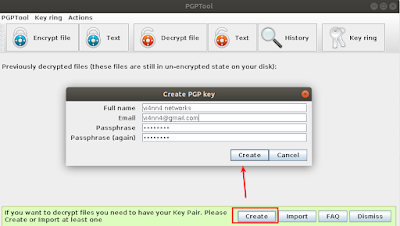
1) define the root password, by the option above >> Create << and set file and personal of information how: name, email and password in my case was create the password xuxa@123
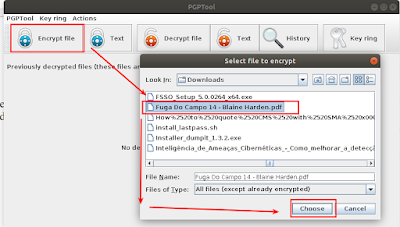
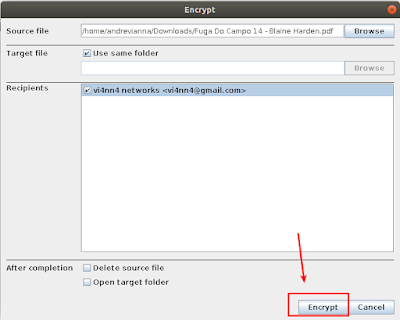
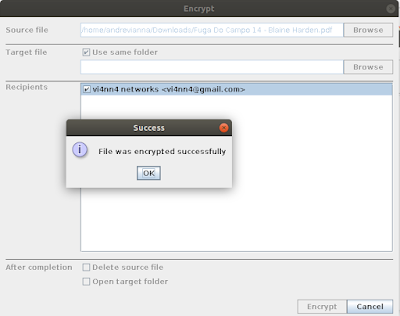
2) set encryption file
3) for decrypt file follow, decrypt file and set choose an than set the password
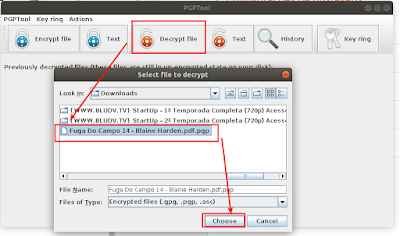
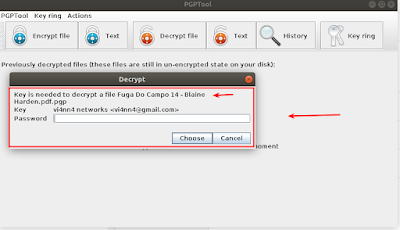
for ubuntu: https://github.com/pgptool/pgptool/releases/download/0.5.1.0/pgptoolgui-0.5.1.0.zip
unzip file downloaded and access this folder: pgptoolgui-0.5.1.0.zip
after that execute this command:
java -jar pgptoolgui-0.5.1.0.jar
now in this case execute follow the steps:
1) define the root password, by the option above >> Create << and set file and personal of information how: name, email and password in my case was create the password xuxa@123

2) set encryption file


3) for decrypt file follow, decrypt file and set choose an than set the password


HOW TO DECRYPT FILE BY OPENSSL USING PRIVATE KEY FOR UBUNTU
first install openssl, after that execute this command:
string command:
openssl rsautl -decrypt -inkey ChavePrivada.key -in Criptograma -out Criptograma.decrpt
description string commands:
openssl rsautl <<< for start the decrypt file
-decrypt << for decrypt file request
-inkey << for set private key
-in << for set cripto file
-out << for registry output file decrypt

for check the valid cert before just execute:
openssl rsa -in ChavePrivada.key -check

string command:
openssl rsautl -decrypt -inkey ChavePrivada.key -in Criptograma -out Criptograma.decrpt
description string commands:
openssl rsautl <<< for start the decrypt file
-decrypt << for decrypt file request
-inkey << for set private key
-in << for set cripto file
-out << for registry output file decrypt

for check the valid cert before just execute:
openssl rsa -in ChavePrivada.key -check

sexta-feira, 23 de novembro de 2018
AD CLI FOR DELETE INACTIVE COMPUTERS
dsquery computer -inactive 60
dsquery computer -inactive 60 -limit 0| dsrm -noprompt
dsquery computer -inactive 60 -limit 0| dsrm -noprompt
quinta-feira, 8 de novembro de 2018
HOW TO FIX SHUTTER PRINTER EDIT FUNCTION
wget https://launchpad.net/ubuntu/+archive/primary/+files/libgoocanvas-common_1.0.0-1_all.deb
wget https://launchpad.net/ubuntu/+archive/primary/+files/libgoocanvas3_1.0.0-1_amd64.deb
wget https://launchpad.net/ubuntu/+archive/primary/+files/libgoo-canvas-perl_0.06-2ubuntu3_amd64.deb
dpkg -i libgoocanvas-common_1.0.0-1_all.deb
dpkg -i libgoocanvas3_1.0.0-1_amd64.deb
dpkg -i libgoo-canvas-perl_0.06-2ubuntu3_amd64.deb
apt install libappindicator-dev
apt install libgoo-canvas-perl
sudo apt-get install -f
shutdown -r now
wget https://launchpad.net/ubuntu/+archive/primary/+files/libgoocanvas3_1.0.0-1_amd64.deb
wget https://launchpad.net/ubuntu/+archive/primary/+files/libgoo-canvas-perl_0.06-2ubuntu3_amd64.deb
dpkg -i libgoocanvas-common_1.0.0-1_all.deb
dpkg -i libgoocanvas3_1.0.0-1_amd64.deb
dpkg -i libgoo-canvas-perl_0.06-2ubuntu3_amd64.deb
apt install libappindicator-dev
apt install libgoo-canvas-perl
sudo apt-get install -f
shutdown -r now
quarta-feira, 7 de novembro de 2018
HOW TO MOUNT WINDOWS BOOTABLE VIA USB IN LINUX
sudo add-apt-repository ppa:nilarimogard/webupd8
apt-get update
apt-get install woeusb
apt-get update
apt-get install woeusb
Source:
domingo, 23 de setembro de 2018
FANTASTIC MALWARE AND WHERE TO FIND THEM
https://www.megabeets.net/fantastic-malware-and-where-to-find-them/
quinta-feira, 13 de setembro de 2018
Assinar:
Postagens (Atom)